 Aurora PDF
How to Convert a Scanned PDF to Editable Word with OCR
You received a scanned contract as a PDF — it's an image, not text. You can't edit it, search it, or copy from it. Here's how to use OCR to turn that scanned PDF into a fully editable Word document.
What Is a Scanned PDF?
A scanned PDF is a photograph of a document. Inside the file, there are no text characters — only image pixels. When you try to select text, nothing highlights. When you try to convert it to Word, you get a document full of images instead of editable text.
This happens because the scanner (or phone camera) captured the page as a picture, not as structured text data. The PDF format stores this as an image layer — readable to human eyes, but invisible to text extraction tools.
OCR: The Bridge Between Image and Text
OCR (Optical Character Recognition) is the technology that reads characters from an image and converts them into actual text data. It analyzes pixel patterns, matches them against font databases, and outputs editable text with position and formatting information.
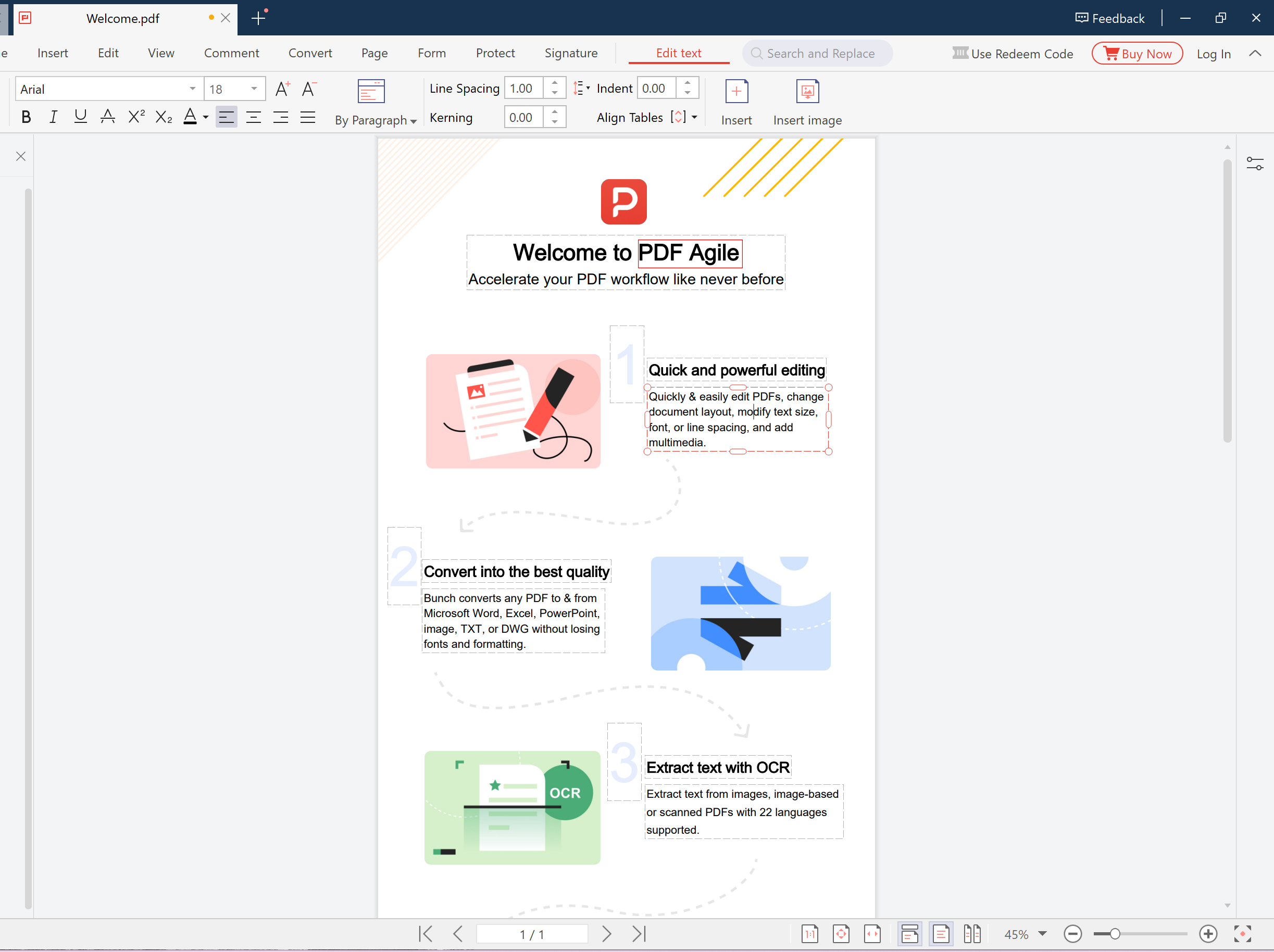
PDF Agile includes a built-in OCR engine that supports 22 languages — including English, Chinese, Japanese, Korean, German, French, Spanish, Portuguese, and more. It runs entirely on your local machine, so your scanned documents never leave your computer.
Step-by-Step: Convert Scanned PDF to Word
Open Your Scanned PDF
Launch PDF Agile and open the scanned PDF file. You'll see the document displayed as an image — text won't be selectable.
Run OCR
Click OCR in the toolbar. Select the document language (or "Auto Detect" for mixed-language documents). PDF Agile processes each page, recognizing characters and reconstructing paragraph structure.
Convert to Word
After OCR completes, click Convert → PDF to Word. The recognized text is now exported as an editable .docx file with paragraph structure, tables, and formatting preserved.
Review and Edit
Open the Word file. Compare it against the original scan. OCR accuracy for clean scans at 300+ DPI is typically 95–99%. Correct any minor recognition errors (rare for standard fonts, more common for handwriting or decorative typefaces).
What OCR Can and Cannot Do
OCR Handles Well
- Standard printed text (books, contracts, reports)
- Tables with visible cell borders
- Multi-page documents
- Mixed-language documents (e.g., English contract with Chinese appendix)
- Documents with common fonts (Arial, Times New Roman, SimSun, etc.)
OCR Struggles With
- Handwritten text (recognition rate drops to 60–80%)
- Decorative or highly stylized fonts
- Faded or low-contrast scans
- Text overlaid on complex backgrounds or images
- Very small text (below 8pt equivalent at scan resolution)
Scanned PDF vs. Normal PDF: Quick Test
Not sure if your PDF is scanned? Try this: open the file in any PDF reader and attempt to select a word. If you can highlight individual characters, it's a normal PDF with embedded text — you can convert directly without OCR. If nothing selects, it's a scanned image — you need OCR first.
Turn scanned documents into editable Word files — OCR + conversion in one tool.
Try the PDF to Word Converter →Frequently Asked Questions
Does OCR work on phone-camera photos of documents?
Yes, but accuracy is lower than flatbed scans. Phone photos often have skewed angles, uneven lighting, and shadows. PDF Agile's OCR can handle these, but for important documents, a proper scan at 300 DPI gives much better results.
Can OCR recognize Chinese and Japanese characters?
Yes. PDF Agile's OCR engine supports 22 languages including Chinese (Simplified and Traditional), Japanese, and Korean. Select the appropriate language before running OCR for best accuracy.
What happens to images and logos in the scanned PDF?
OCR only processes text areas. Images, logos, charts, and decorative elements are preserved as images in the Word output — they're not converted to editable objects. This is standard OCR behavior across all tools.