 Aurora PDF
Why Do Hyperlinks Break When Converting Word to PDF?
You convert a Word document to PDF, and all the clickable links — website URLs, email addresses, cross-references — stop working. This is one of the most common complaints in Office-to-PDF conversion. Here's why it happens and how to fix it.
The Two Types of Broken Links
Not all broken links are the same. Understanding which type you have determines the fix:
Type 1: Links Become Plain Text (Not Clickable)
The URL or email address still appears in the PDF, but clicking it does nothing. The text is there, but the underlying hyperlink action is gone. This happens when the converter strips out the link's action property and only preserves the visible text.
Most common cause: Using "Print to PDF" instead of "Save as PDF" or a dedicated converter. The print pipeline treats hyperlinks as visual formatting, not as interactive elements.
Type 2: Links Disappear Entirely
The hyperlink text itself is missing from the PDF — it looks like a gap in the paragraph. This is rarer and usually happens when the converter fails to process styled hyperlink runs (text with both a URL action and custom formatting like color/underline).
Why "Print to PDF" Kills Your Links
When you use File → Print → Microsoft Print to PDF, Word sends your document through the Windows print rendering pipeline. This pipeline is designed for paper output — it cares about visual appearance (fonts, colors, layout) but ignores interactive elements like hyperlinks, bookmarks, and form fields.
The result: your PDF looks identical to the printed version, but all interactive features are stripped. Links become plain underlined blue text with no click action.
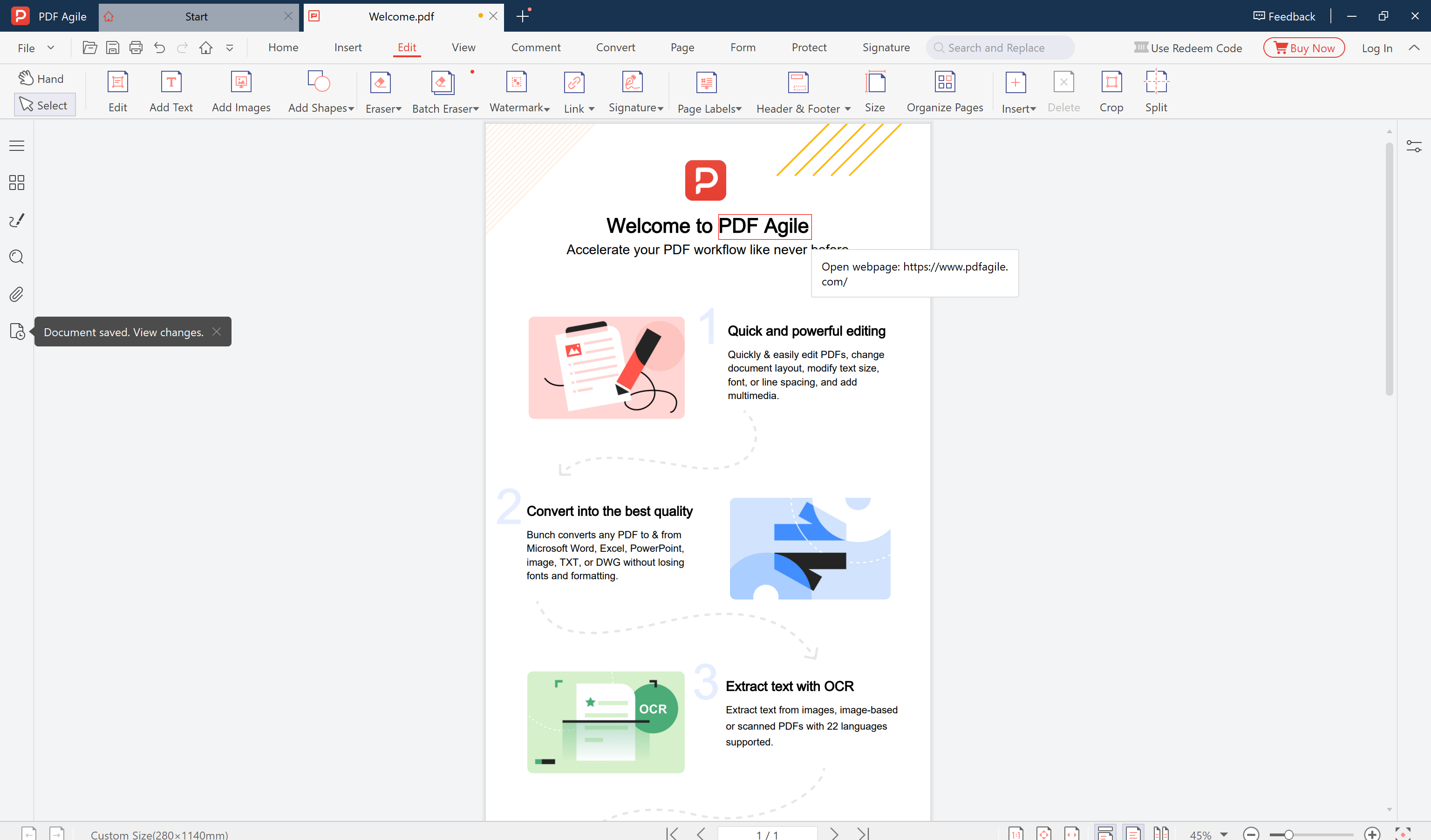
How to Preserve Hyperlinks When Converting Word to PDF
Use a Dedicated Converter (Not Print to PDF)
Open your Word file in PDF Agile and select Convert → Word to PDF. Dedicated converters read the Word XML structure directly, preserving hyperlink actions as PDF link annotations — the same technology Adobe Acrobat uses.
Verify Link Settings Before Converting
In PDF Agile's Word-to-PDF settings, ensure Preserve hyperlinks is enabled. This option maps each Word hyperlink to a corresponding PDF link annotation with the correct URL target.
Check the Output
After conversion, open the PDF and click a few links. External URLs should open in your browser. Internal cross-references (e.g., "See Section 3") should jump to the correct page. Email links should open your mail client.
Special Cases: Links That Still Break
Relative Links (e.g., "See page 5")
Internal cross-references within a Word document sometimes convert incorrectly — the link jumps to the wrong page or section. This happens when page numbers shift during conversion (e.g., font substitution changes line count, pushing content to different pages). PDF Agile preserves page layout, so internal links usually work correctly. If they don't, verify that "Preserve layout" is enabled.
Mailto Links
Email links (mailto:user@example.com) are preserved by PDF Agile but may not work in all PDF readers. Some browser-based PDF viewers don't support mailto actions. Desktop readers (Adobe Acrobat, PDF Agile) handle them correctly.
Links in Tables and Headers/Footers
Hyperlinks inside table cells and header/footer regions are sometimes lost during conversion because these areas are processed differently by the rendering engine. If you have critical links in these locations, test the output and manually add them in the PDF if needed using PDF Agile's Edit → Add Link feature.
Convert Word to PDF with all hyperlinks preserved — clickable, not just visible.
Go to Word to PDF Converter →Frequently Asked Questions
Why do my links work in Word but not in the PDF?
Most likely you used "Print to PDF" instead of "Save as PDF" or a dedicated converter. The print pipeline strips interactive elements. Use PDF Agile's Word-to-PDF converter with "Preserve hyperlinks" enabled.
Can I add hyperlinks to a PDF after conversion?
Yes. Open the PDF in PDF Agile, go to Edit → Add Link, select the text area, and enter the URL. This works for any link that was lost during conversion.
Do hyperlinks work in PDFs viewed on mobile phones?
Yes, most mobile PDF readers support clickable hyperlinks. However, mailto links may not work on all mobile apps. External URLs typically open in the phone's browser when tapped.